Deck essentials
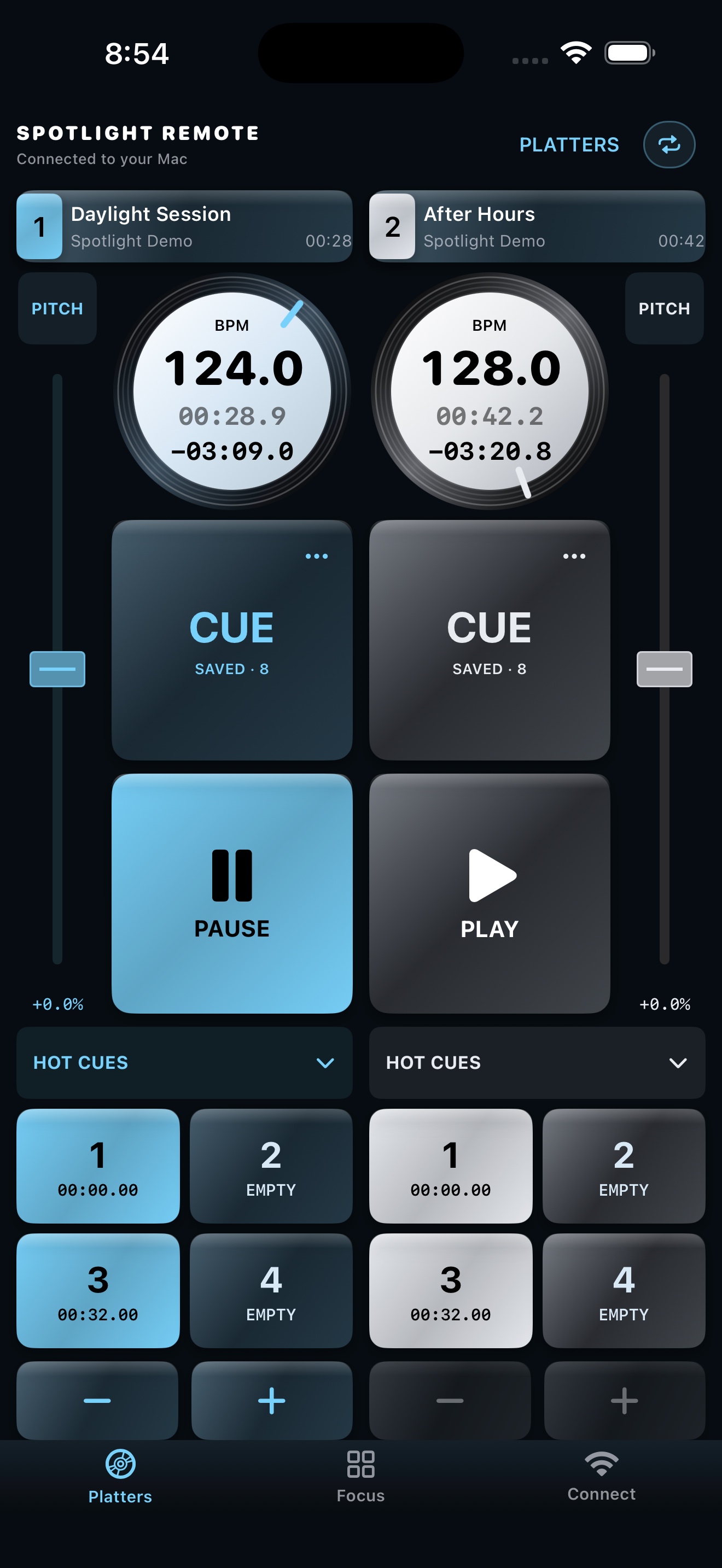
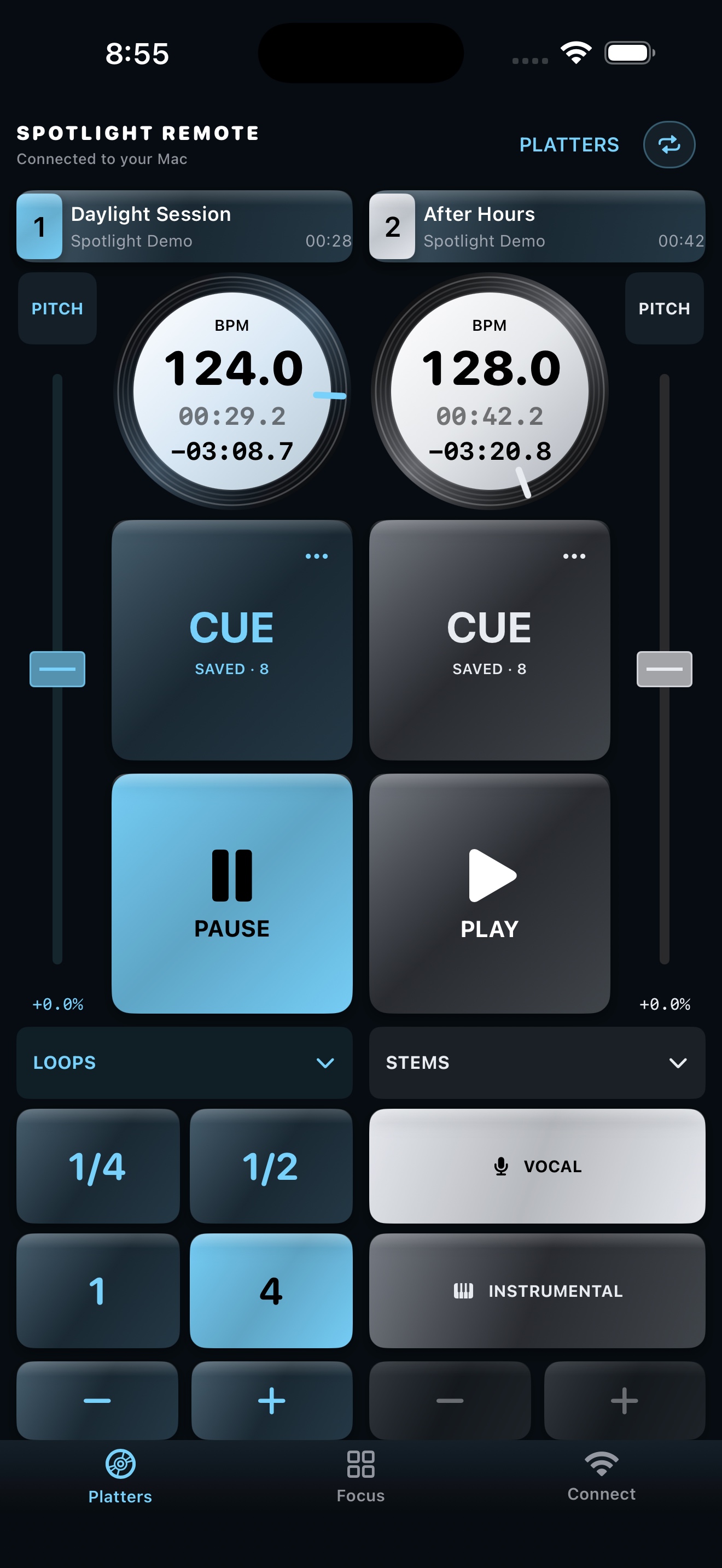
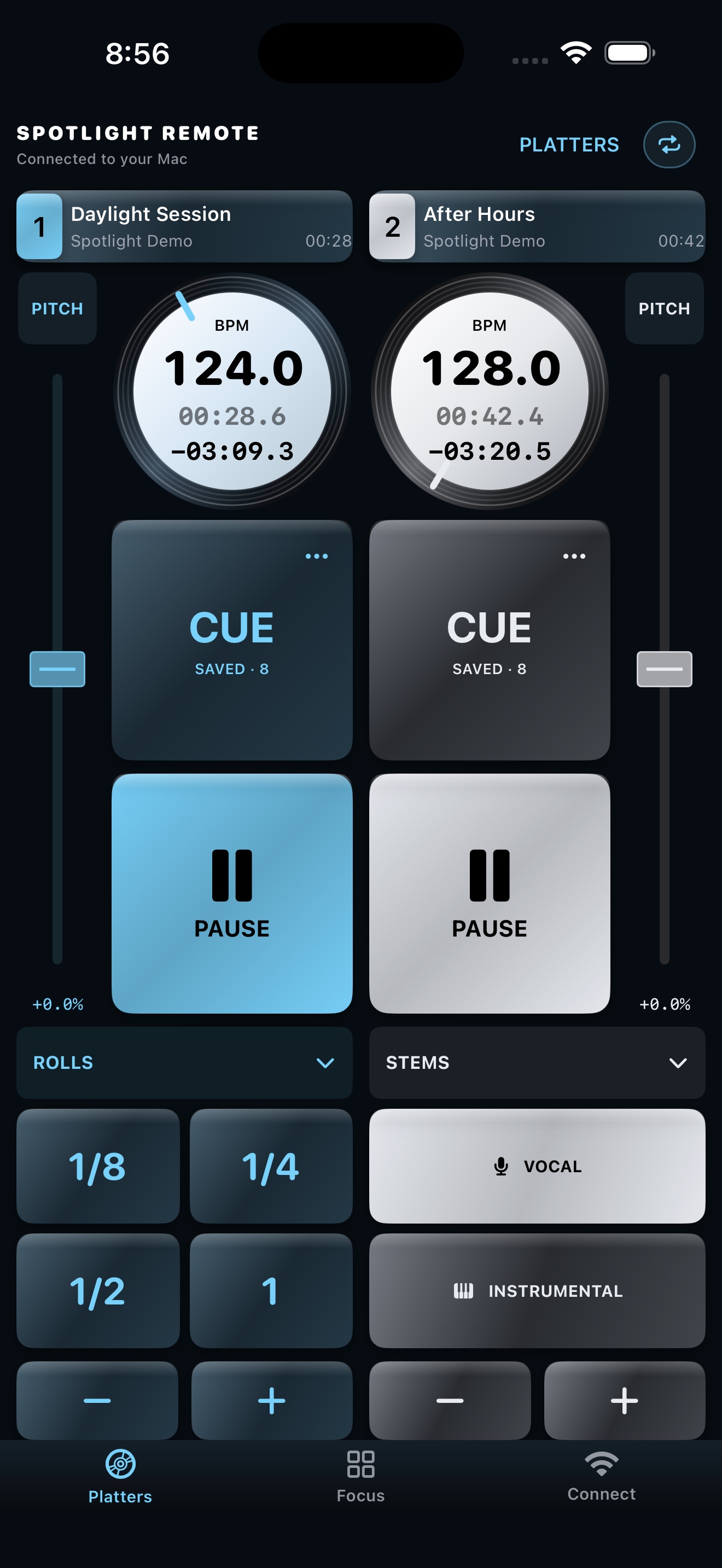
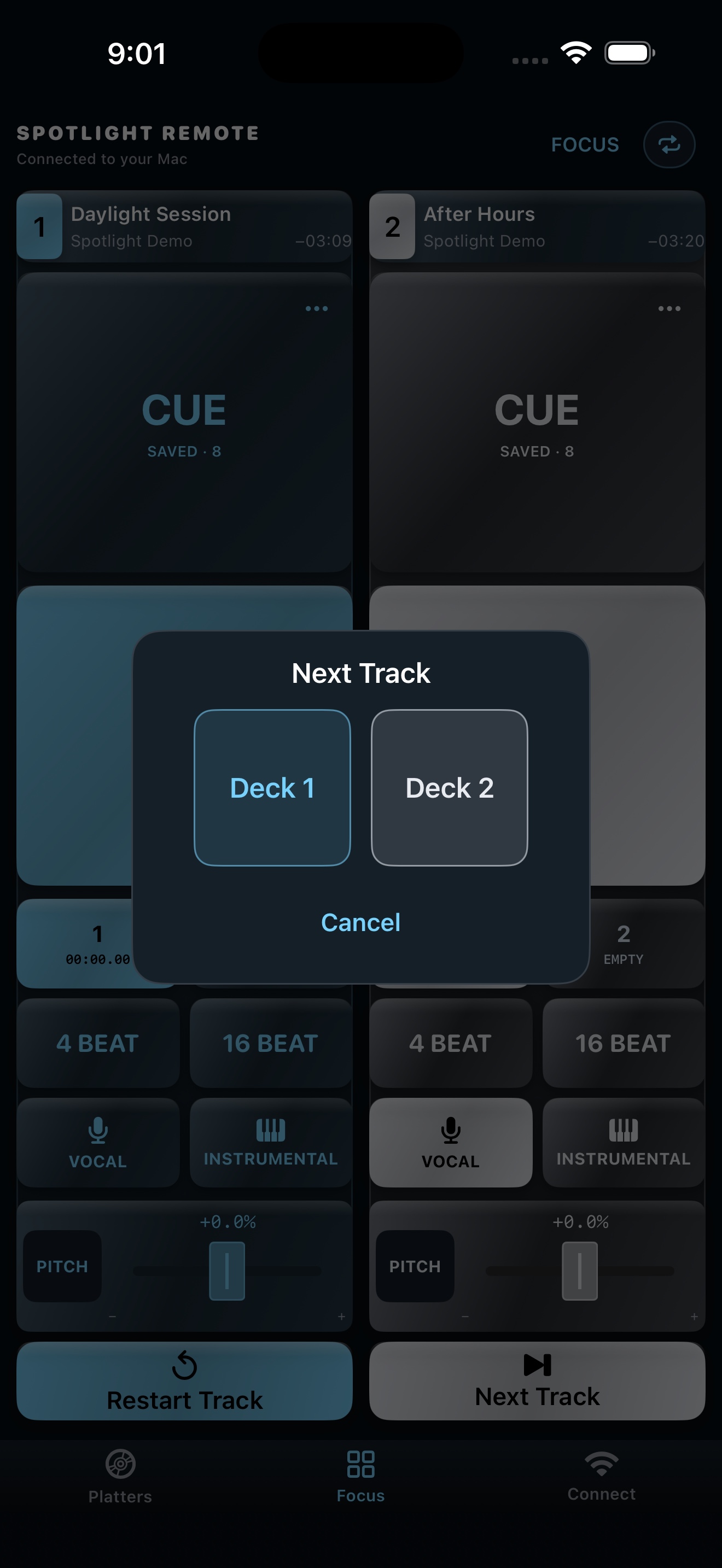
Play, Pause, main CUE and saved hot cues, with the loaded titles visible for both decks.
 Spotlight Remote
Your iPhone. Your two decks.
Put your supported Serato DJ Pro deck controls within reach. Pair Spotlight Remote on your iPhone with Spotlight Remote Bridge on your Mac.
Release in preparation. Currently in private testing.
See the app
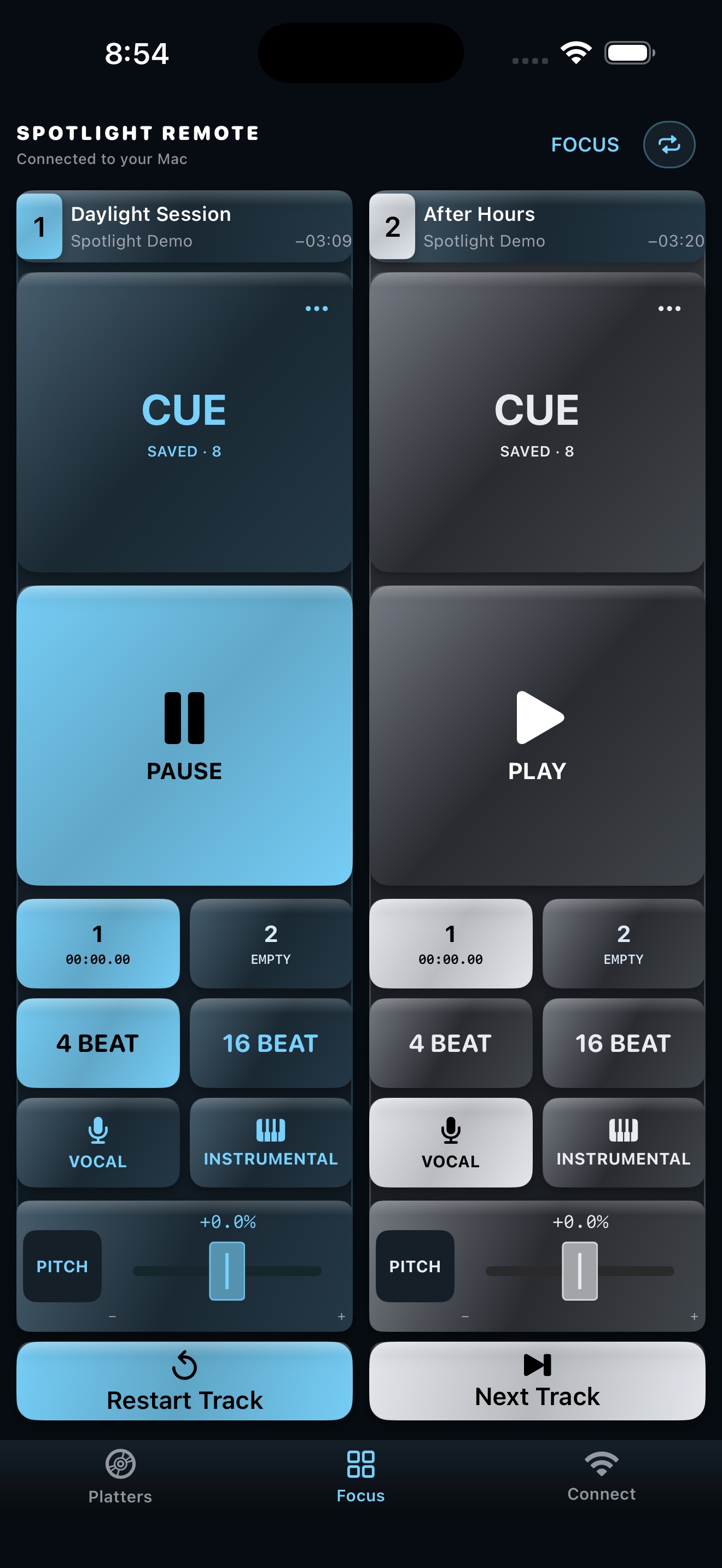
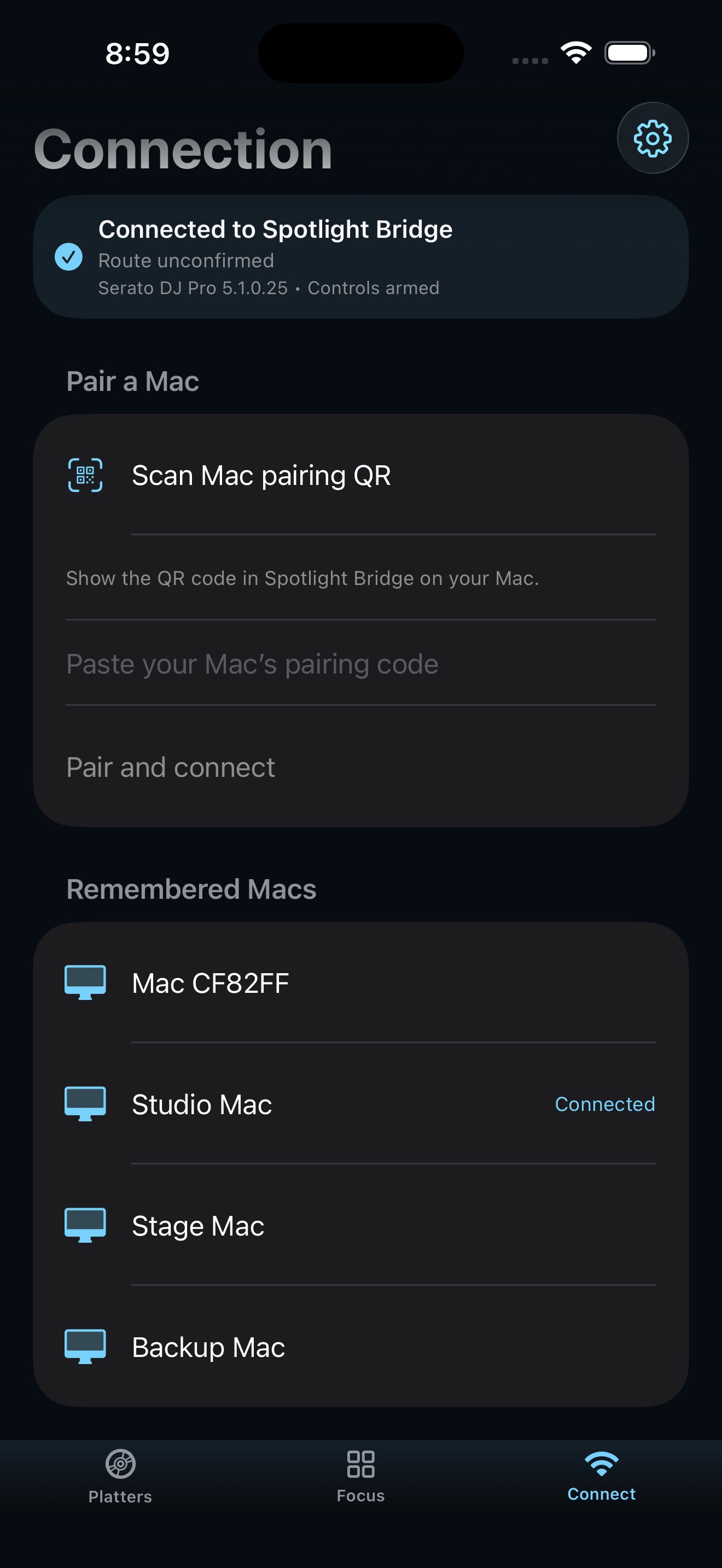
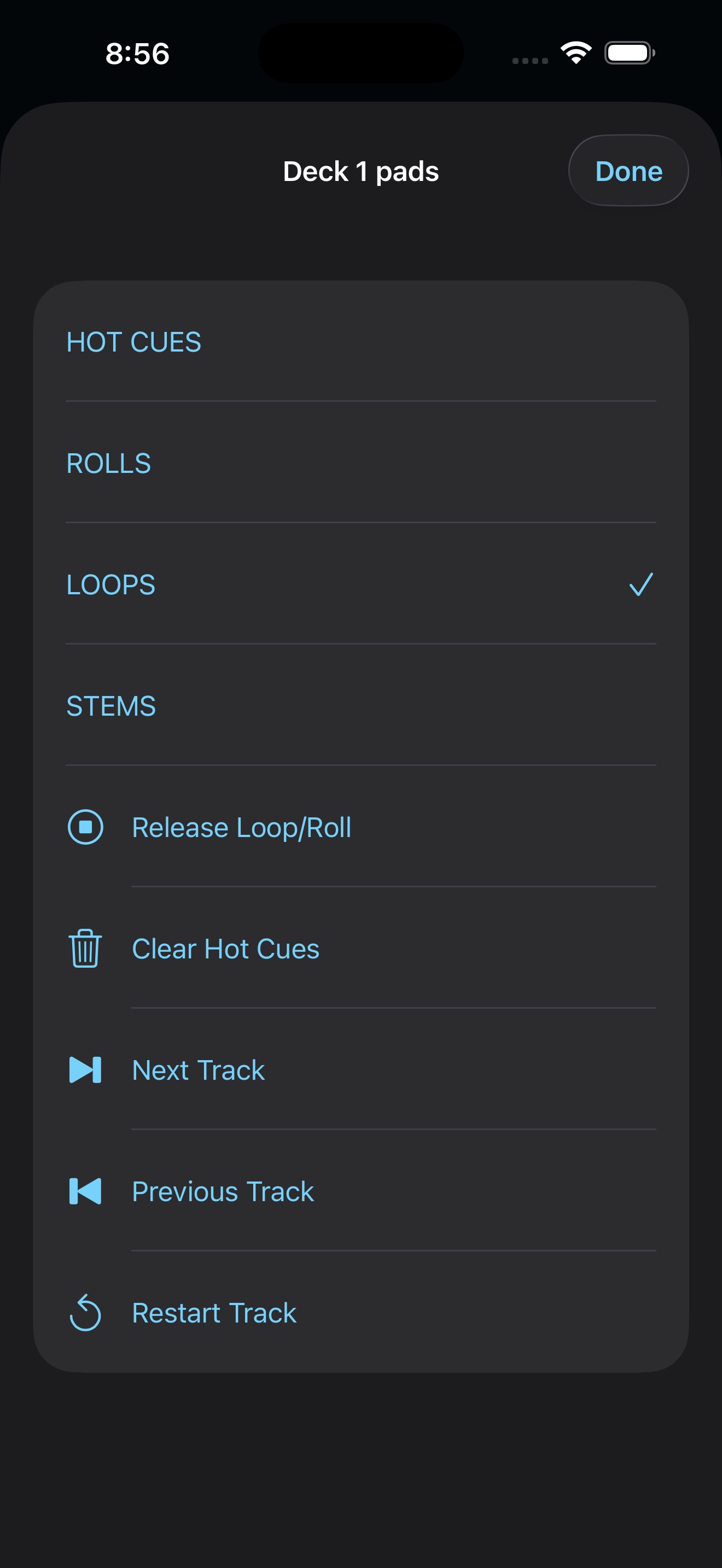
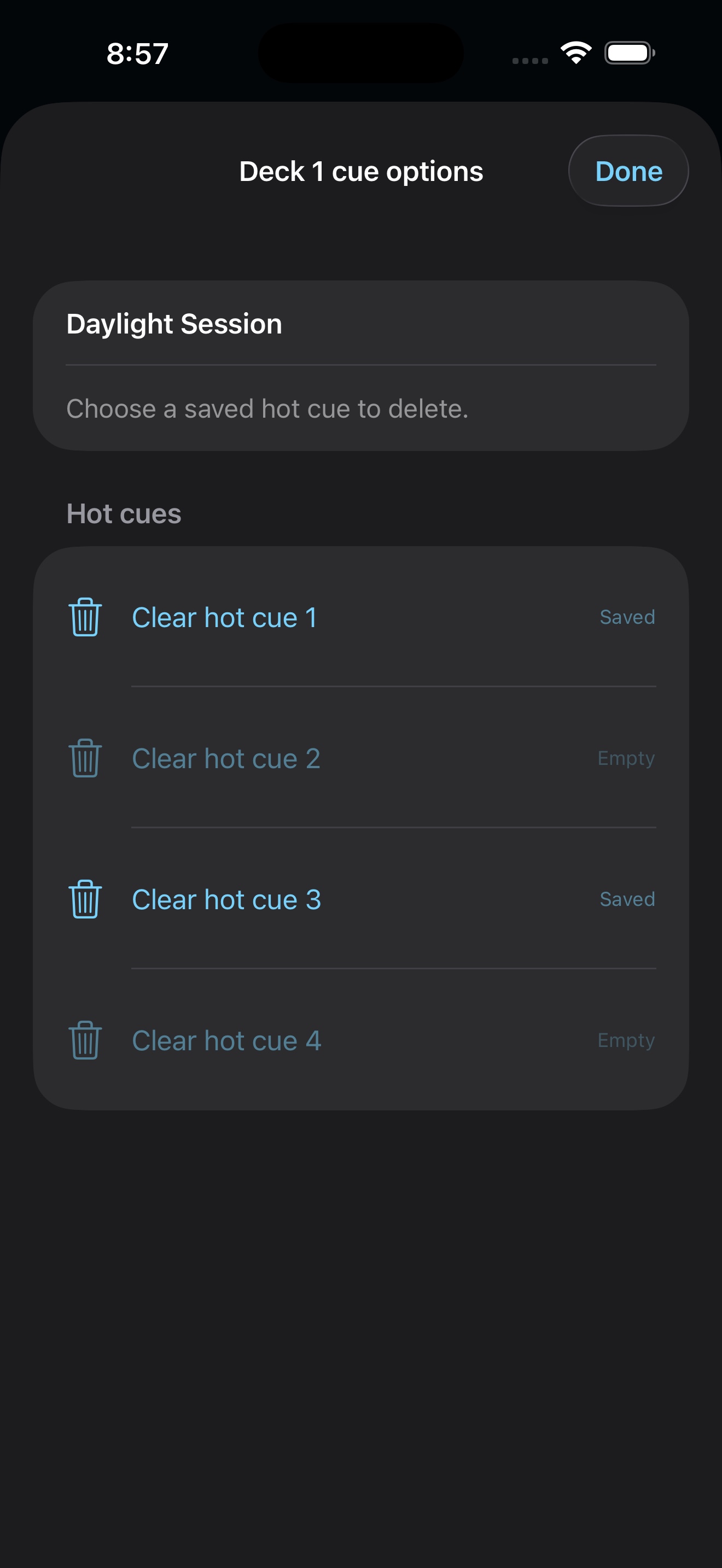
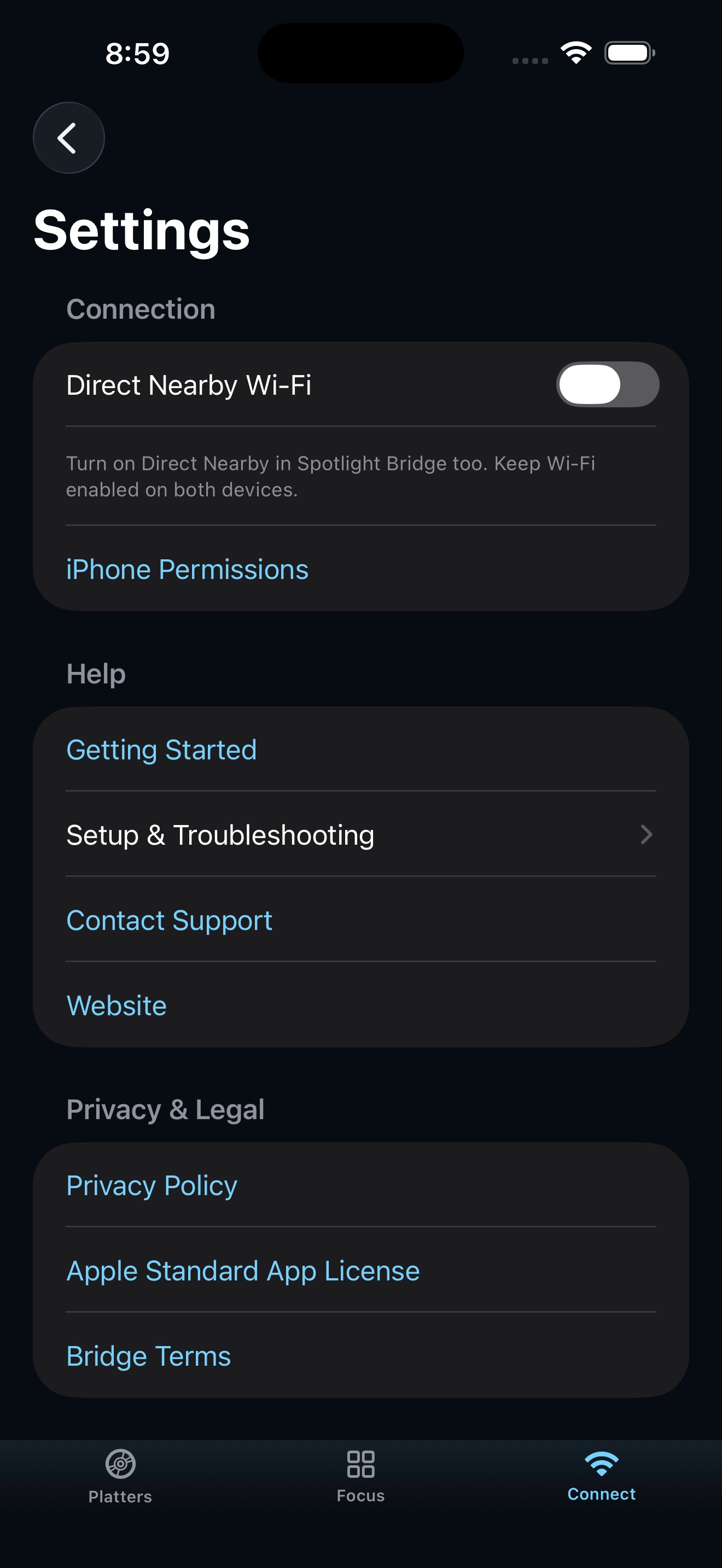
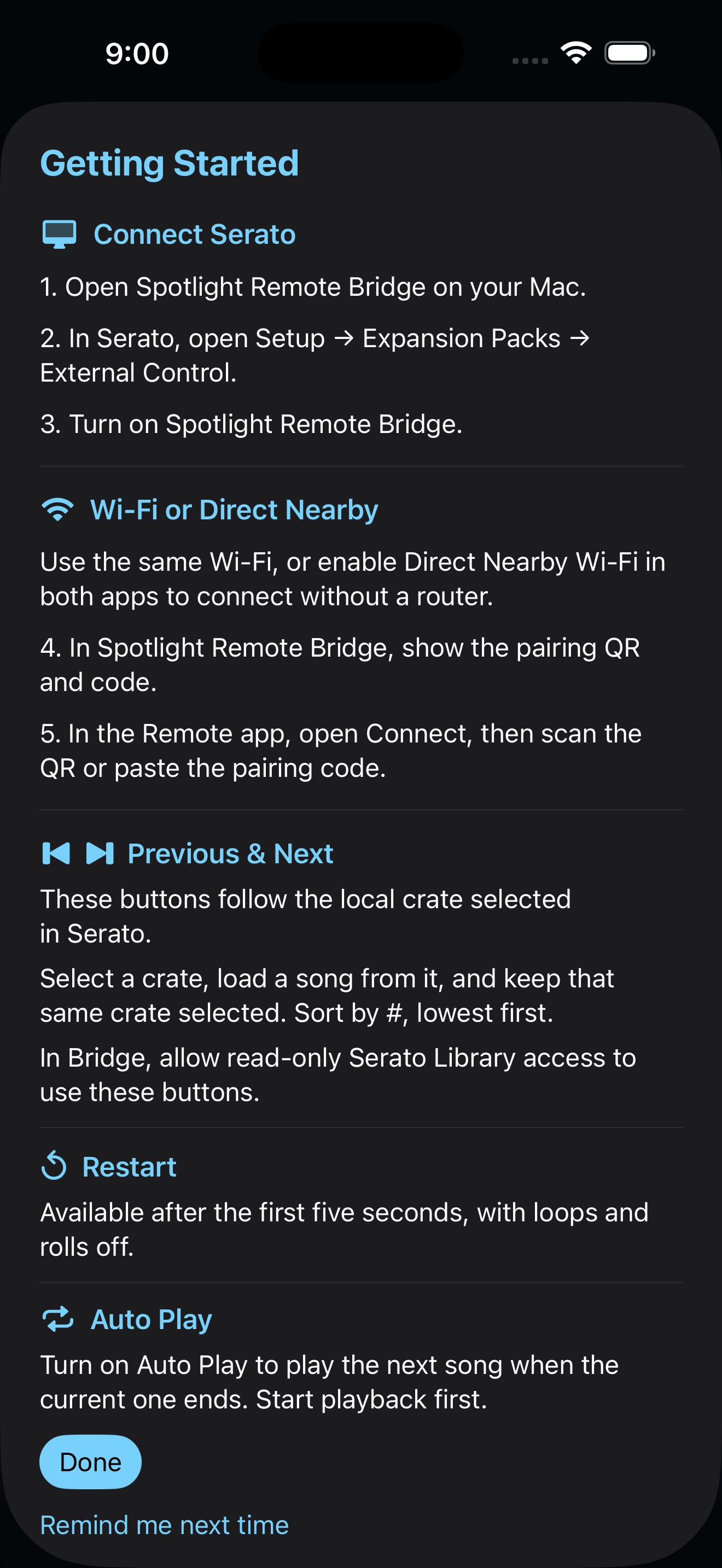
The current Remote interface, with example tracks and remembered Macs. Tap any image for a closer look.
The Mac companion
Pair your phone, connect Serato and grant optional read-only library access for Next and Previous. The built-in guide explains each step.
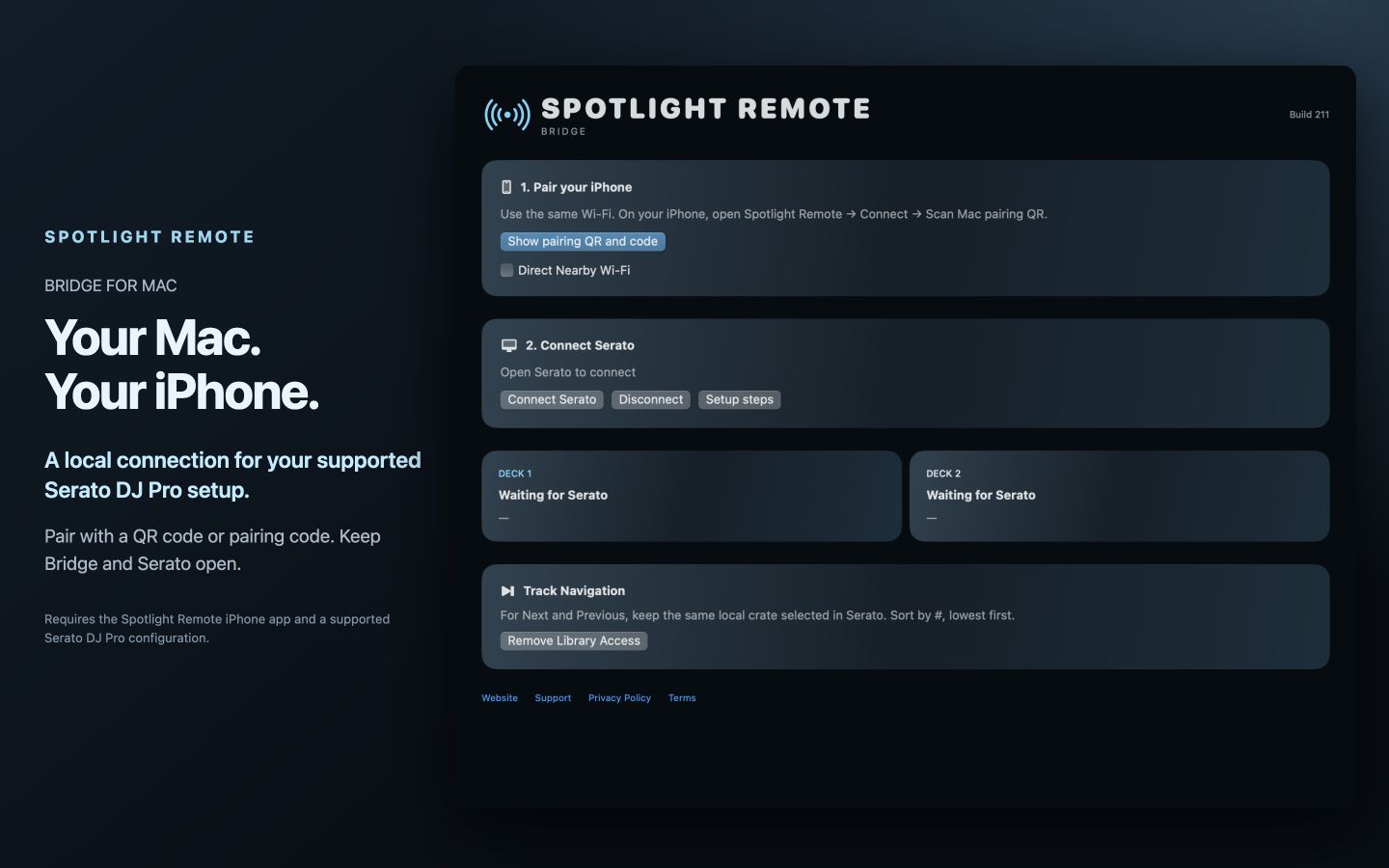
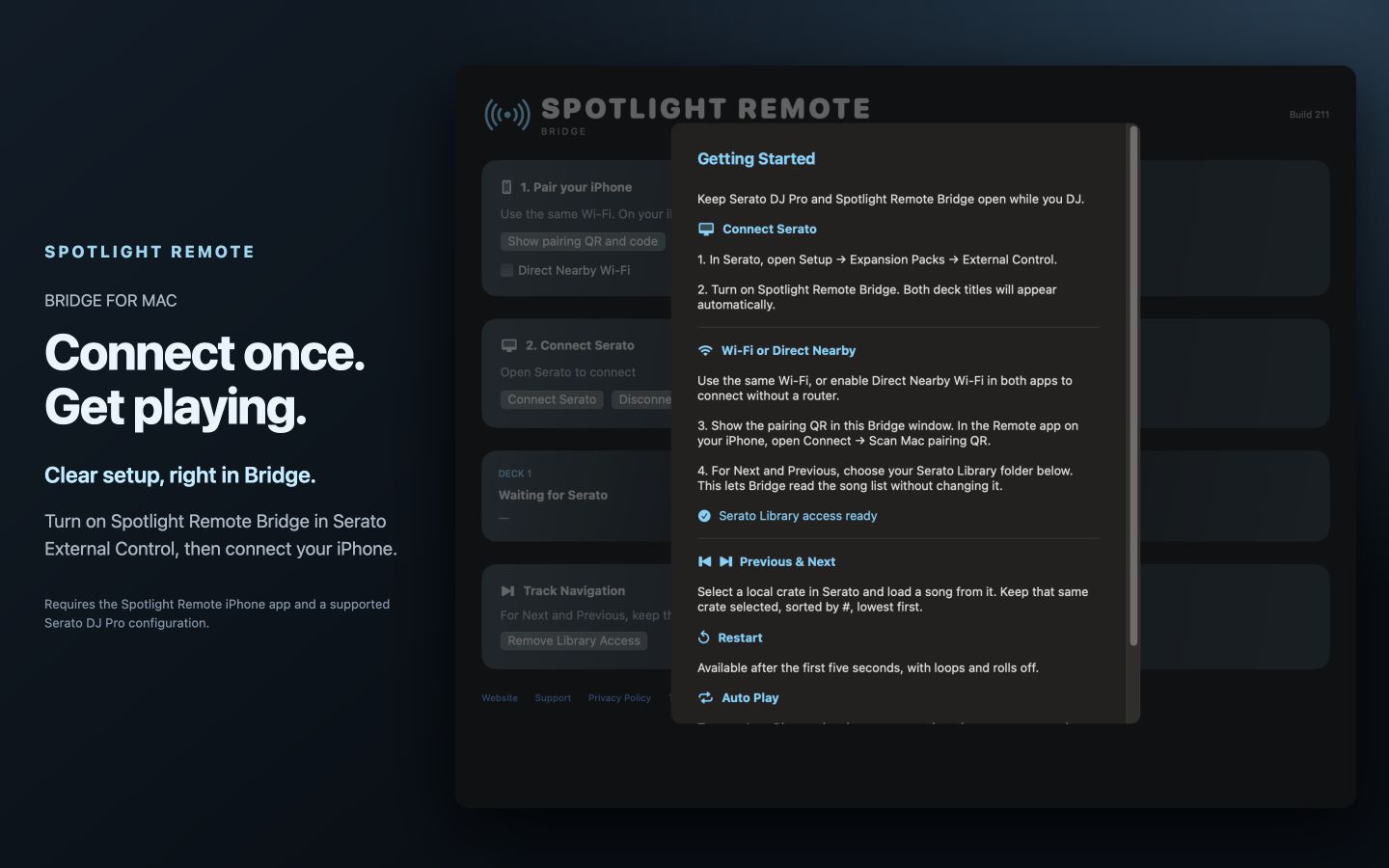
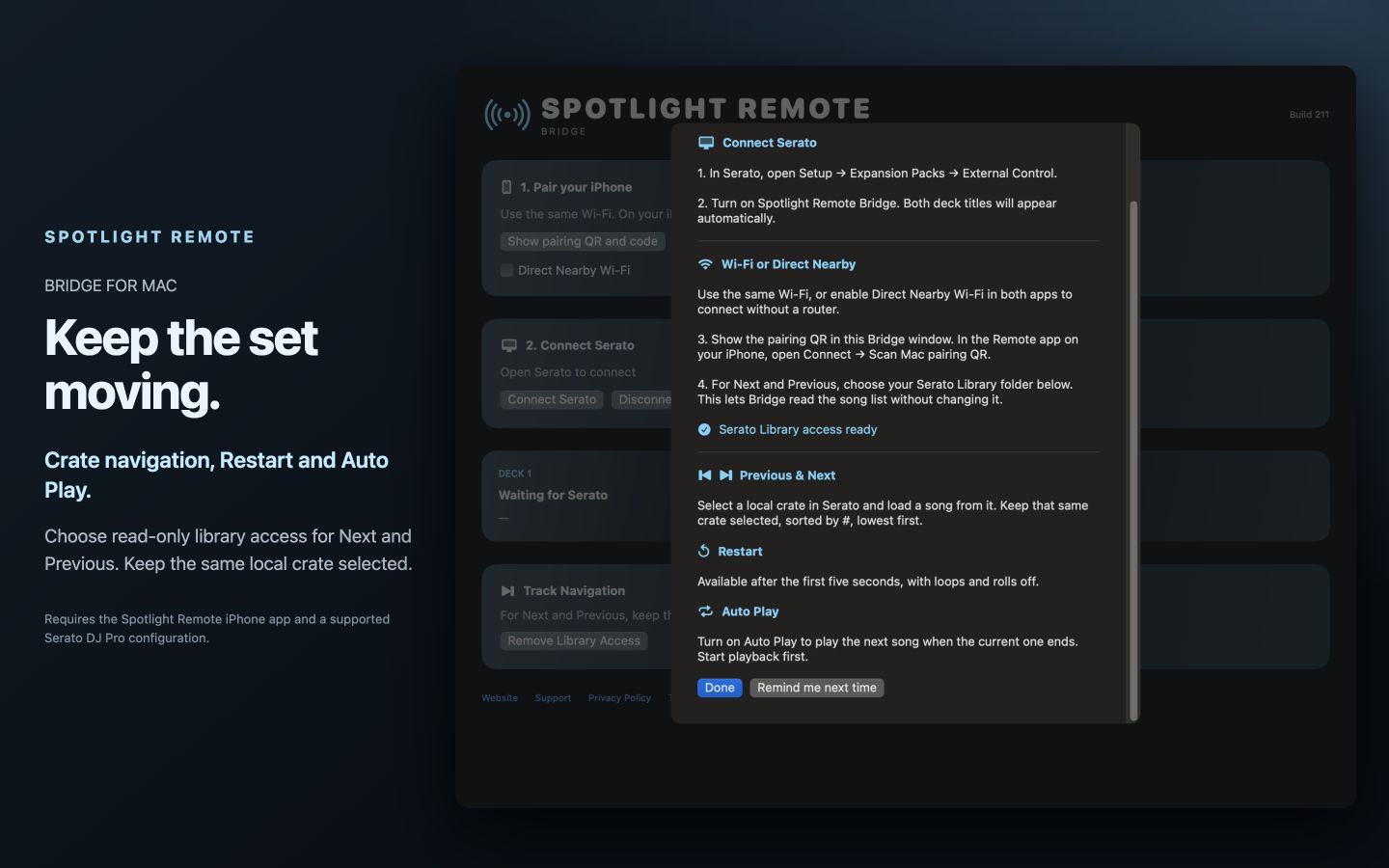
Screenshots use example data. Available controls depend on your supported Serato setup and deck state. Check compatibility.
Built for a quick touch
Available controls follow your Serato version and current deck state. Check your setup before performing.
Play, Pause, main CUE and saved hot cues, with the loaded titles visible for both decks.
Use supported loop sizes, hold-and-release rolls, and Vocal or Instrumental controls.
Navigate Next and Previous within the selected local crate. Restart the loaded track when eligible.
Two ways to perform
Platters keeps the decks and pad choices together. Focus puts the key controls in a direct layout for quick access.
Understand the controlsDeck view, pad menus and more options.
Play, CUE, hot cues, loops and stems at hand.
Switch between the deck overview and the essential controls.
A local connection
Scan the QR in Bridge or paste its pairing code. Use the same Wi-Fi, or enable Direct Nearby Wi-Fi in both apps to connect without a router. Remembered Macs make returning to a paired setup straightforward.
No Spotlight account is required. Library access is optional and read-only.
How Remote handles your informationGetting ready for release
Public App Store availability and pricing will be announced here. In the meantime, explore the connection steps and the current compatibility record.